Appearance
Accessories Inventory
The Accessories section tracks peripheral items that can be checked out to users — things like keyboards, mice, headsets, cables, adapters, and other equipment that supports your main hardware assets.
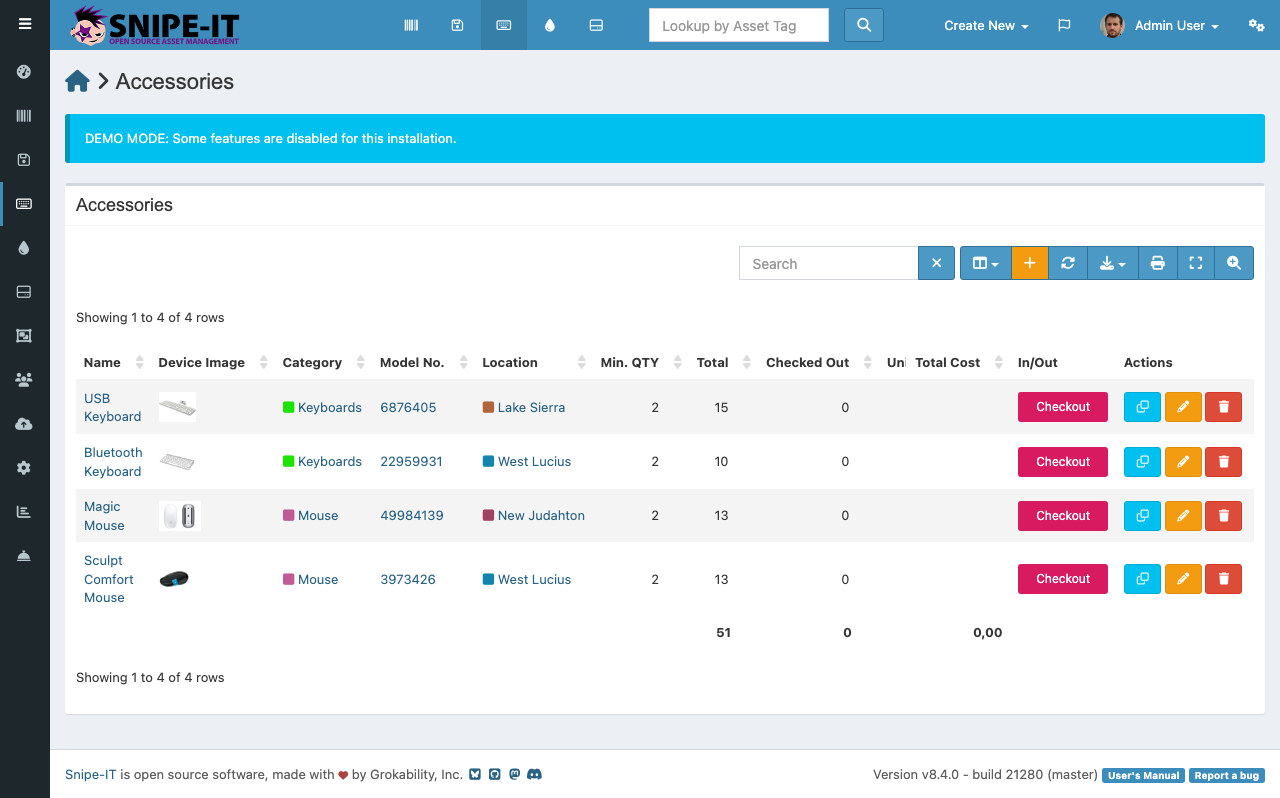
Viewing Accessories
The accessories list shows each item with its:
- Name — Descriptive name of the accessory
- Category — The type of accessory
- Model Number — Manufacturer's model identifier
- Quantity — Total quantity in stock and how many are checked out
- Min Quantity — Threshold for low-stock alerts
- Location — Where the accessories are stored
Adding Accessories
To add a new accessory type:
- Click "Create New" [2] and select "Accessory"
- Enter the name, category, quantity, and optionally a minimum quantity threshold
- Click Save
Unlike individual hardware assets, accessories are tracked by quantity rather than individually. When you have 50 USB-C cables, you create one accessory entry with a quantity of 50 rather than 50 separate entries.
Checking Out Accessories
To assign an accessory to a user, click on the accessory name and then use the "Checkout" button. Select the user and confirm. The available quantity decreases automatically.
When a user returns an accessory, use the "Checkin" option on the user's profile or the accessory's detail page.
Low Stock Alerts
If you set a minimum quantity threshold, Snipe-IT notifies you when stock drops below that level. These alerts appear on the dashboard and in the notification area, giving your team time to reorder before running out.