Appearance
Admin Settings & Configuration
The Admin section provides system-wide configuration options for customizing Snipe-IT to match your organization's needs.
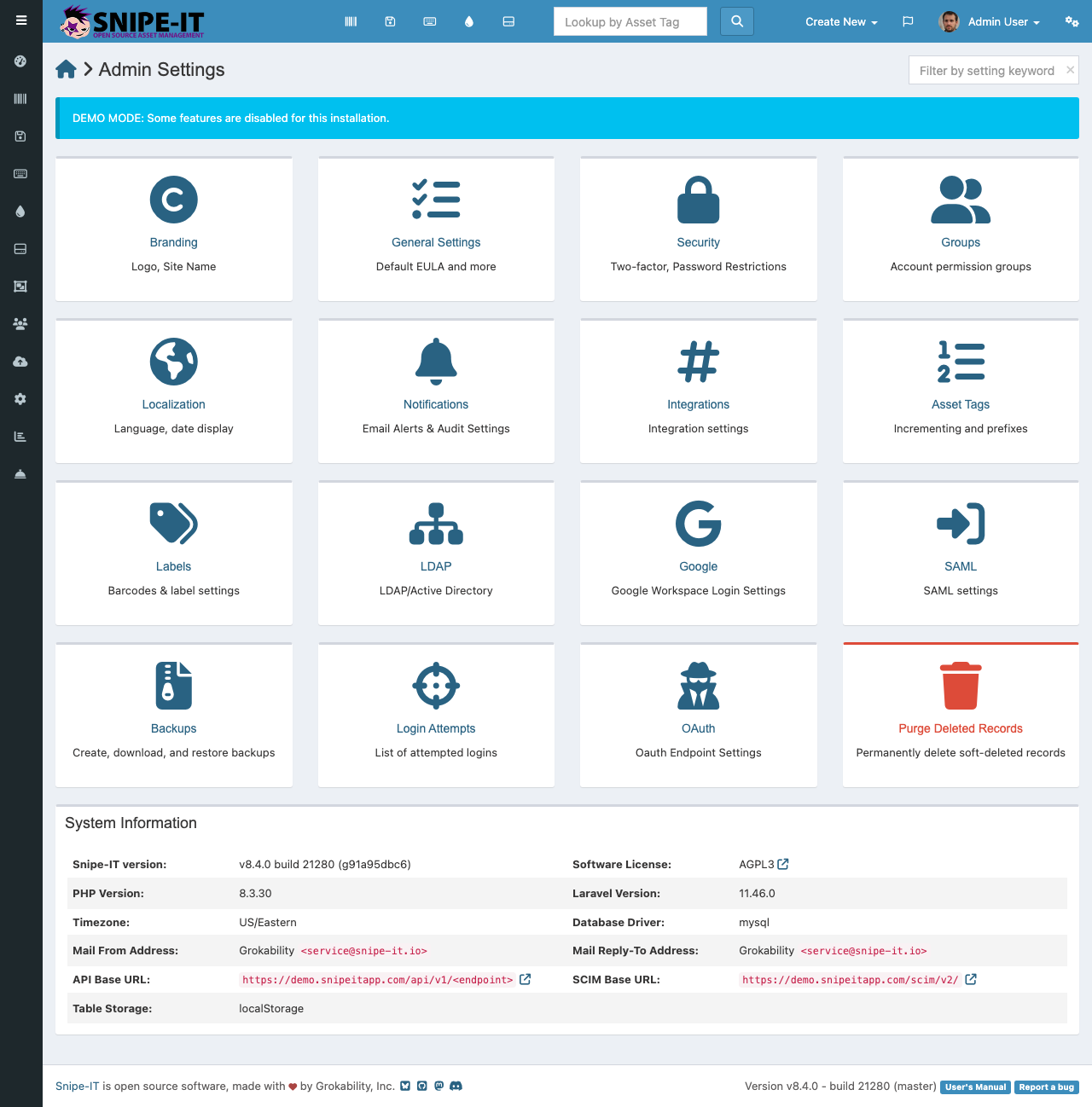
Accessing Settings
Click the gear icon [1] in the top-right navigation bar to access the Admin Settings panel. Only users with administrator privileges can access this section.
General Settings
The settings panel includes multiple sections:
Branding
- Site Name — Customize the name displayed in the header
- Logo — Upload your organization's logo
- Email Header/Footer — Customize automated email templates
Asset Management
- Auto-Increment Asset Tags — Enable sequential asset tag generation
- Asset Tag Prefix — Set a prefix for generated tags (e.g., "IT-")
- Required Fields — Choose which fields are mandatory when creating assets
Notifications
- Email Alerts — Configure which events trigger email notifications
- Slack/Teams Integration — Send alerts to messaging platforms
- Alert Recipients — Set who receives different types of alerts
Security
- Password Policy — Set minimum password requirements
- Two-Factor Authentication — Enable 2FA for all users or specific groups
- LDAP/Active Directory — Configure directory integration for single sign-on
- SAML — Set up SAML-based authentication
Labels & Barcodes
- Label Templates — Configure barcode label layouts for asset tagging
- Barcode Type — Choose between 1D barcodes, QR codes, or both
User Groups & Permissions
From the Admin panel, configure permission groups that control what different user types can see and do. Create groups like "Help Desk", "Department Managers", or "Auditors" with specific permission sets.
Backup & Maintenance
The Admin section also provides options for:
- Database Backup — Download a backup of your Snipe-IT database
- System Health — View PHP version, database status, and environment information
- Audit Log — Review all administrative actions taken in the system