Appearance
Dashboard Overview
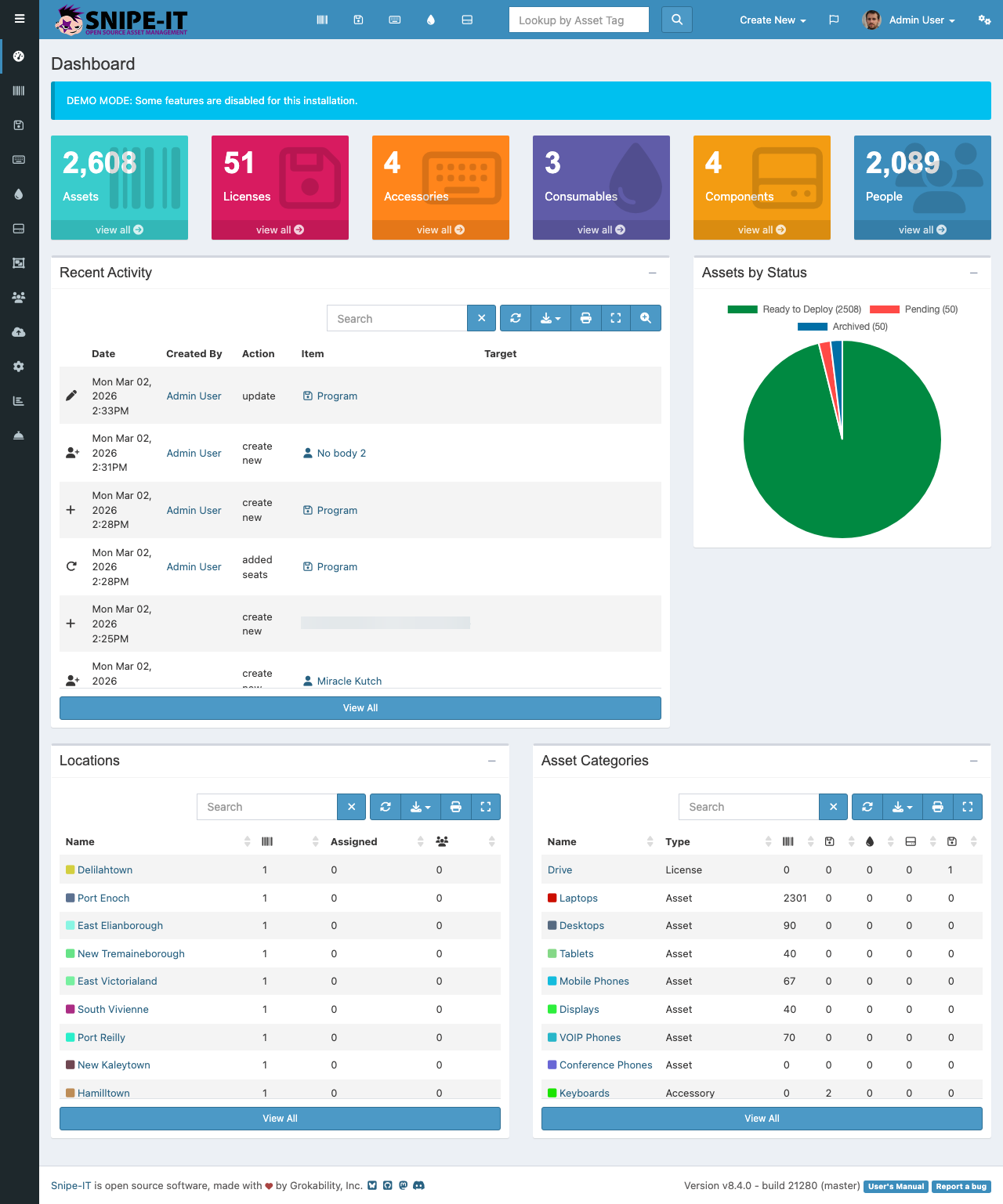
The Snipe-IT dashboard provides a centralized view of your organization's IT asset inventory. When you log in, the dashboard is the first screen you see, giving you an at-a-glance summary of your entire asset management system.
Status Overview
The top section of the dashboard displays summary cards showing total counts for each asset category. These cards include:
- Total Assets — The number of hardware assets tracked in your system
- Total Licenses — Software licenses being managed
- Total Accessories — Peripherals and accessories in inventory
- Total Consumables — Items that are used up and need replenishment
- Total Components — Internal hardware components tracked separately
Activity Feed
Below the summary cards, the dashboard shows a recent activity feed. This log displays the latest check-ins, check-outs, and asset updates performed by users across your organization. Each entry shows the action taken, the asset involved, the user who performed the action, and a timestamp.
Navigation
The top navigation bar [1] provides quick access to all major sections: Assets, Licenses, Accessories, Consumables, and Components. The "Create New" button [4] in the top-right corner lets you add new items to any category. Use the Search button [7] to look up assets by their asset tag.
The left sidebar offers icon-based navigation to the same sections, which is helpful when the top bar is collapsed on smaller screens.
Quick Actions
From the dashboard, you can:
- Click any summary card to jump to that category's full listing
- Use the activity feed to track recent changes
- Access the Alerts area [5] to review pending actions or overdue items
- Navigate to Admin Settings to configure system-wide preferences