Appearance
Software License Tracking
The Licenses section helps you manage software licenses across your organization. Track license seats, expiration dates, and which users or machines have been assigned each license.
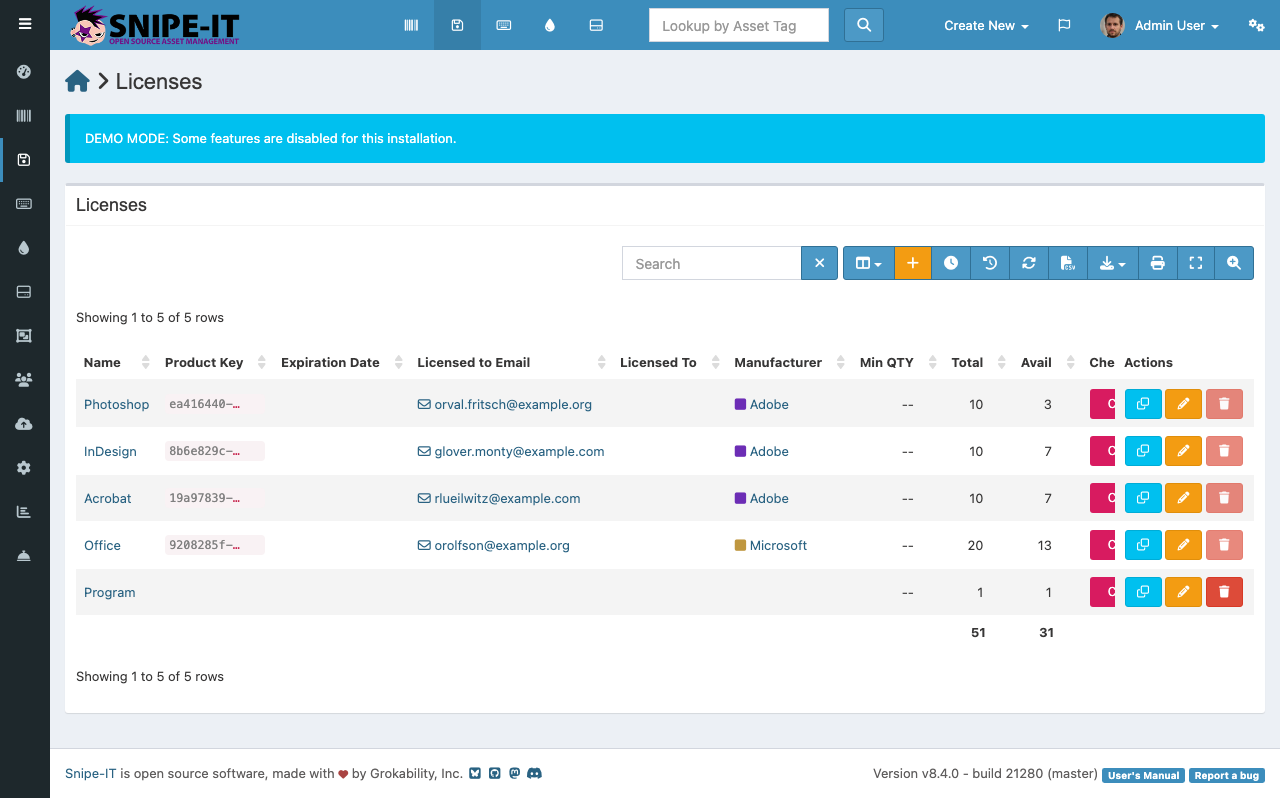
License List View
The licenses page shows a table of all tracked software licenses with key information:
- License Name — The name of the software (e.g., "Adobe Creative Cloud", "Microsoft Office 365")
- Product Key — The license key or serial number (partially masked for security)
- Seats — The total number of available seats and how many are currently in use
- Manufacturer — The software vendor
- Expiration Date — When the license expires
- Purchase Cost — The cost paid for the license
Adding a License
To add a new software license:
- Click "Create New" [2] in the top navigation
- Select "License" from the dropdown
- Enter the license name, product key, number of seats, and optionally the vendor and expiration date
- Click Save
Assigning License Seats
Click on a license name to open its detail view. From there, you can check out individual seats to users or machines. The system tracks how many seats are available versus how many are in use, preventing over-allocation.
Monitoring Expirations
Licenses approaching their expiration date appear in the Alerts section on the dashboard. Review these regularly to plan renewals and avoid service interruptions.
License Reports
Snipe-IT can generate reports showing license utilization — helping you identify unused seats that could be reassigned or licenses that are over-provisioned.